Beer Pong TV Display for Bars: Live Scoreboard and Numbers
Jump to the FAQA beer pong table in a bar has two problems, and both are plain to see. The table often sits empty because nobody knows they’re allowed to just play. And when a game is on, nobody notices except the four people standing around the table.
A screen solves both. BeerpongMe has a TV display for exactly that: running games with a live score, the daily leaderboard, and QR codes for free tables - all in the browser, no extra device. And next to it, an operator report that tells you whether the table actually pays for itself.
This article assumes your tables are already set up. If they’re not, start with Beer pong table QR codes.
All tables on one screen
Under “Fast Game” → “My Tables”, “Open TV display” in the side menu starts the overview of all your tables; in the browser it opens in a new tab. Switch to full screen, put the screen up, done.
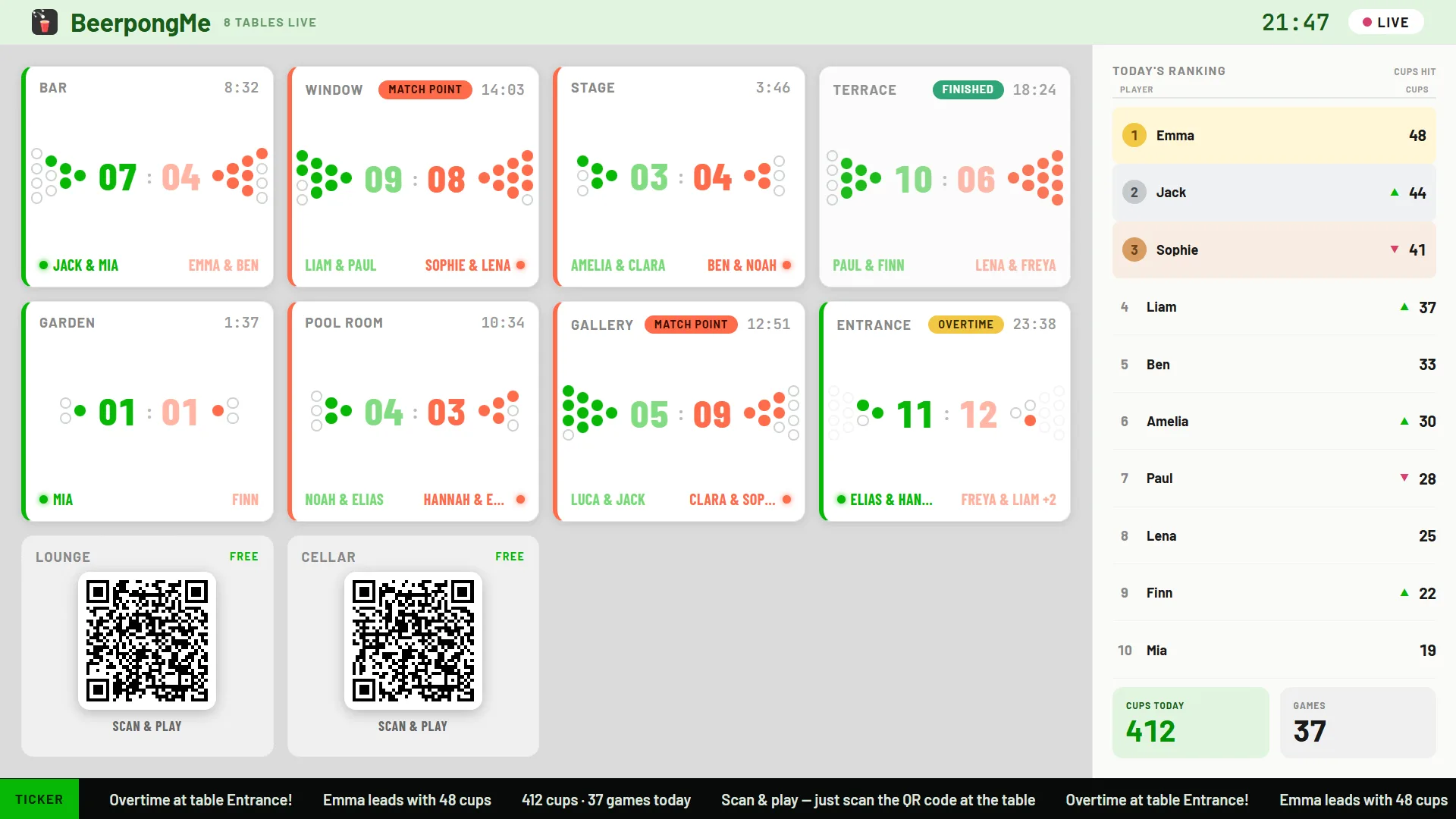
Every table is a tile:
- When a game is running, you see the score, the names of both sides, and the cup racks - cups that have been hit are filled in the team colour, and the pyramids point toward the middle of the screen. A coloured bar marks which side is up, and a clock counts how long the round has been going.
- When the table is free, the tile shows the QR codes for both sides of the table side by side, each labelled. Whoever is standing around scans the code for the side they want to play on and lands in the right team.
- Status markers catch your eye when it gets interesting: “Match point”, “Redemption”, “Overtime” and “Finished”.
On the right runs the leaderboard for the day with up and down arrows, and the day’s key numbers below it. At the bottom, a ticker cycles through the day’s leader, the daily totals, matches that just finished, and the reminder that you can simply scan and play.
The display scales itself to the number of tables - there are three density levels. With one or two tables it goes large and shows player names, with three or four it goes medium, and from five tables up it goes compact. You can override that in the settings (see below).
One table, one screen
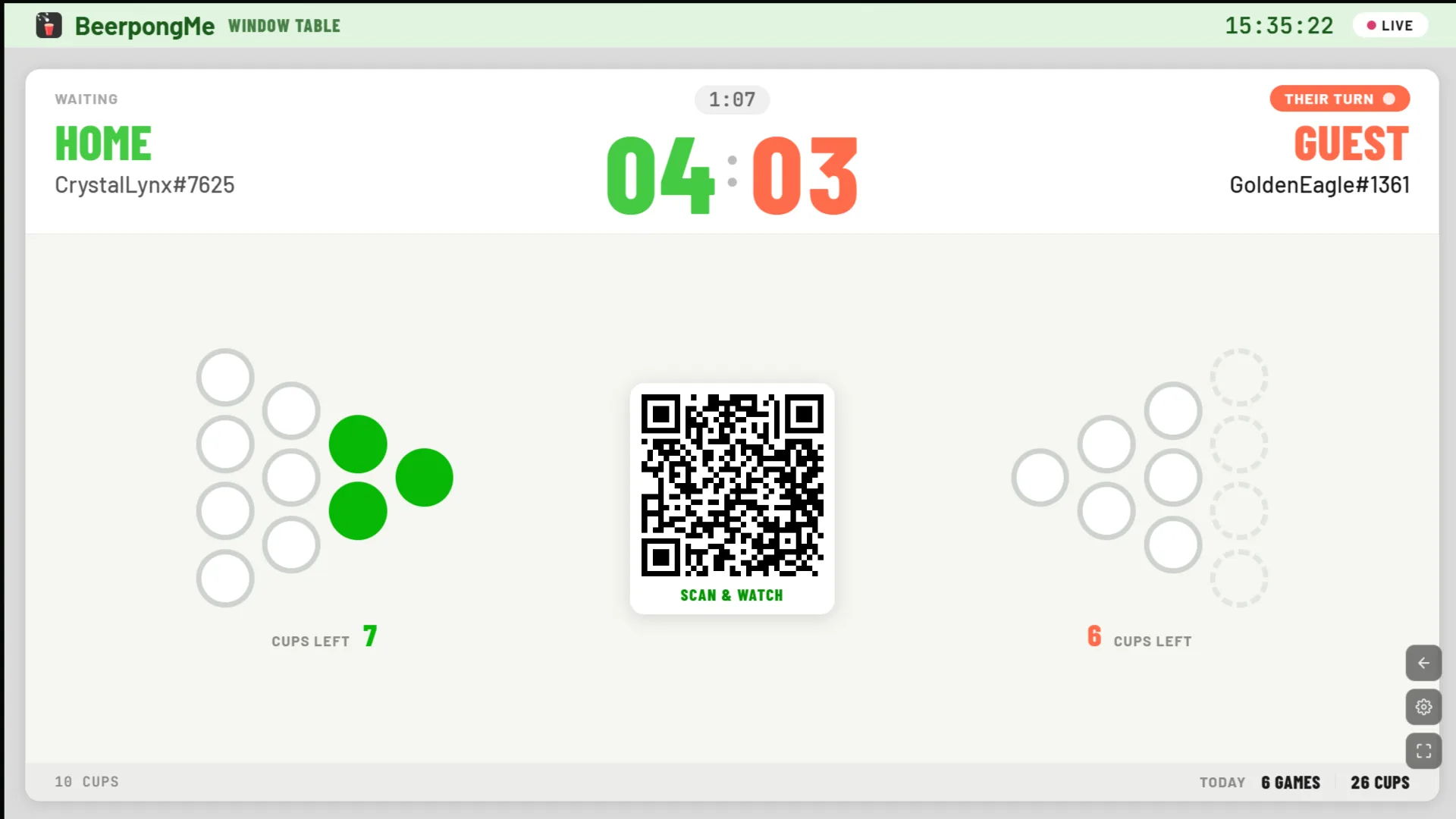
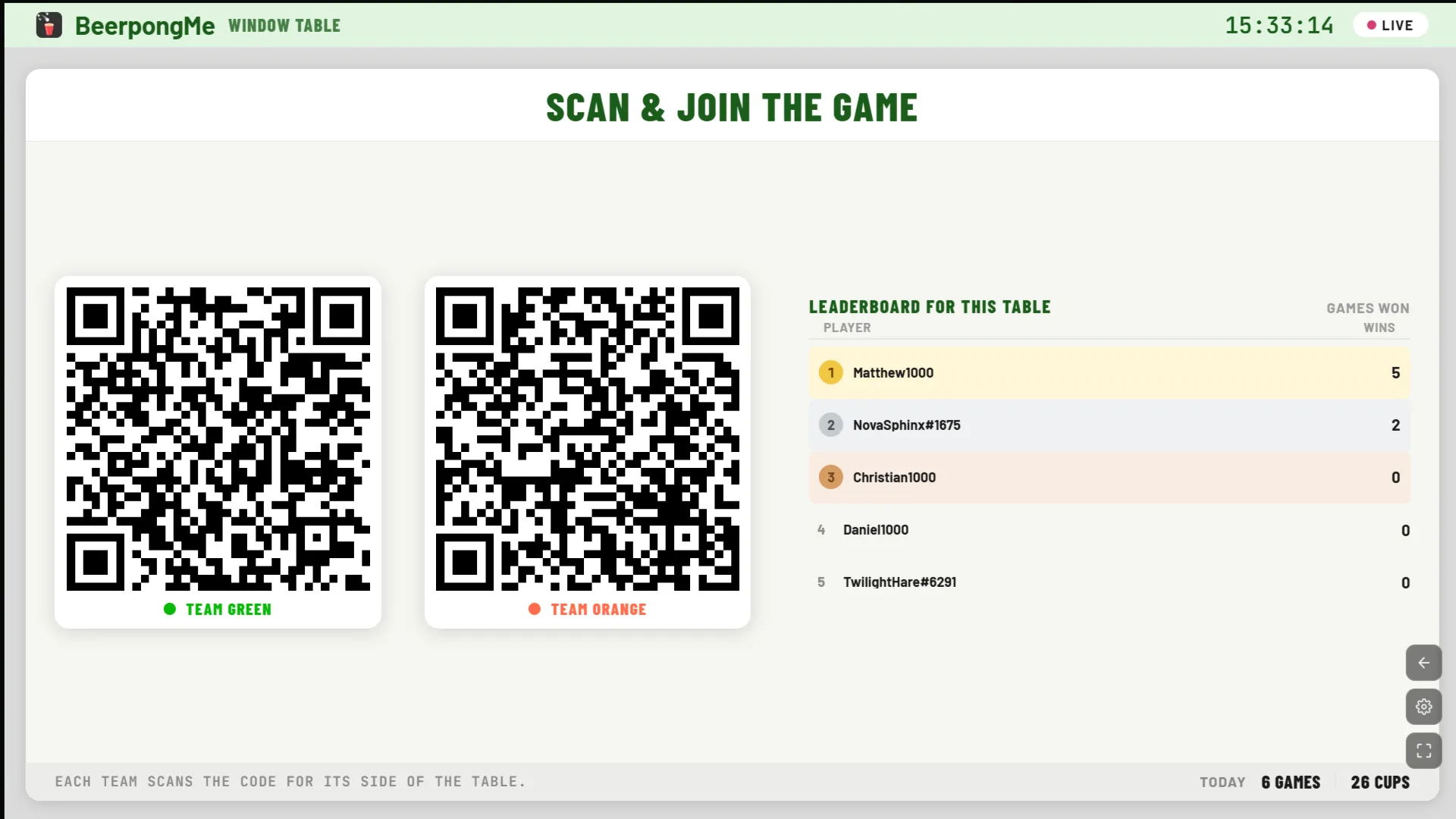
When a screen hangs directly above or next to a table, the overview is the wrong view - only that one table matters there. That’s what the single-table display is for: in the table list, every table card has a “TV” action that opens exactly that table full screen.
- During a game: the score large, both cup racks, and a QR code for watching - scan it and you follow the round live on your own phone.
- When the table is free: the QR codes for both sides side by side, and next to them the leaderboard for that table. The empty table advertises itself.
The display remembers which table it was set to. A power cut or a restart of the stick won’t throw you back to the overview, and after a reload the player names and the clock are there straight away instead of waiting for the next throw.
Sorting the leaderboard
By default the daily leaderboard ranks by cups hit. In the settings you can switch to three other criteria:
| Sorting | Who ends up on top | Good for |
|---|---|---|
| Cups | Whoever hit the most | The normal case - rewards playing a lot |
| Wins | Whoever won the most | Competitive nights |
| Games | Whoever played the most | Busy tables - rewards stamina |
| Ø Cups | Hits per round | Whoever actually throws well, not just whoever showed up |
Ø Cups needs at least two rounds played per person - otherwise one lucky shot puts somebody at the top of the field. There is also an “Auto” setting: the display then cycles through the criteria on its own. On a screen that people walk past all evening, that’s the most interesting option, because over the course of the night everybody ends up on top of something.
What else you can set
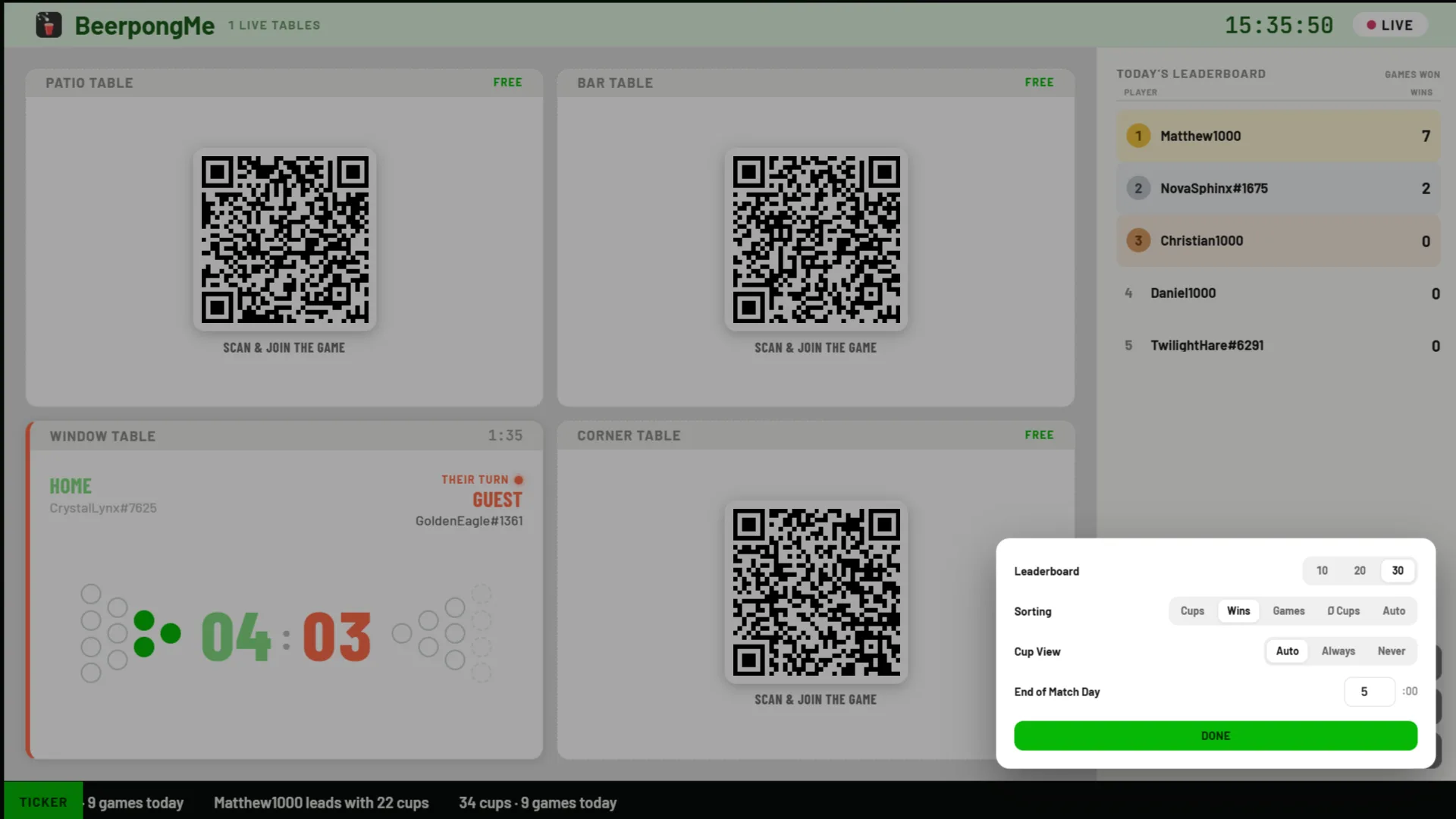
The gear icon opens a small settings panel:
- Leaderboard - 10, 20 or 30 places. The setting doesn’t exist in the single-table view, where it wouldn’t mean anything.
- Sorting - the four criteria above plus “Auto”.
- Cup view - Auto leaves it to the display to decide from how many tables on it drops the pyramids. Always forces them even with many tables, Never switches them off entirely and shows only the numbers.
- End of match day - the most important setting for bars. Set to 5 a.m. (the default), a night that runs until five in the morning still counts as the same match day. The leaderboard won’t reset to zero at midnight while people are still playing.
QR codes that change after every game
A QR code stuck to a table can be photographed - and then somebody claims your table from across the street. For tables with a screen there is therefore the option “Refresh the QR code after each game” in the table dialog. The table then draws fresh codes after every round, and that photo from earlier is worthless.
The catch: printouts are then valid for a single game only. The option is meant for tables where the code sits on a screen anyway. If you want to print, leave it off. And if somebody scans an old code, they don’t get a cryptic error but a note that this table has a new code now.
The operator report: is the table working?
Next to the display for your guests there are the numbers for you. In the side menu of “My Tables”, “Stats” takes you to the report; at the top you pick “All Tables” for the overall picture or a single table. You can also jump straight to one table with the “Stats” action on its card. The range is 7, 30 or 90 days.
At the top are the key figures: Rounds, Cups, Play time, Ø Round and Players. Below that it gets more interesting.
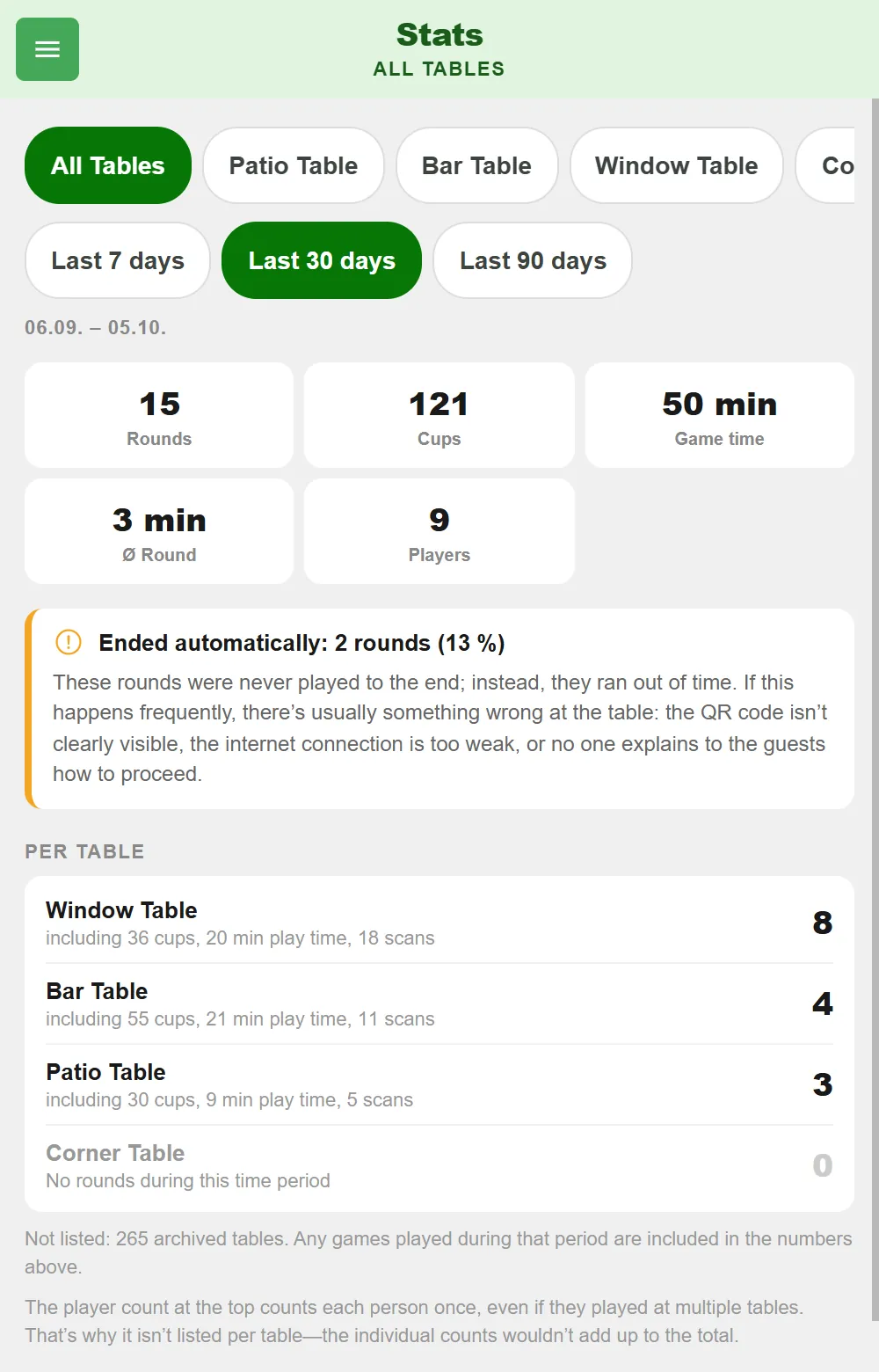
Per table. Which table ran how much - with cups, playing time and scans. A table showing “No rounds during this time period” is either in the wrong spot or its code is badly placed.
Ended by itself. How many rounds were never played to the end but ran into the timeout. A few are normal - people leave. If it piles up, something concrete is usually wrong: the QR code is hard to see, the Wi-Fi doesn’t reach that corner, or nobody explains to guests what happens after the last cup.
Days. A bar chart across the range. Tap a day and you see rounds, cups, the span from the first to the last round, the utilization and the longest break. Worth knowing when you read it: utilization compares the time played against that span - not against your opening hours. So 60% means “between the first and last round, the table was busy 60% of the time”, not “60% of the evening”.
Peak hours. Which hour is busiest. That’s the number you schedule a tournament or a happy hour around.
Scans. How many people scanned and what came of it: new round started, joined a round, just watched, ended up in the queue, or hit an expired code. At the top is the share of scans that turned into a game. If that drops, the queue is usually too long - a sign that a second table would pay off.
Players. Split into people with an account, guests, and “Been here before”. That last number is the most honest answer to whether the table creates regulars or just entertains passers-by. Participations by local players are listed separately: those are people tracked on somebody else’s device without a profile of their own, so they count as entries, not as individuals.
Rounds, shots. Rated and cancelled rounds, rounds with overtime, the peak spectator count, the most played format, plus total shots with trickshots, bouncers and bombs. This is the section for the window display - “4,000 balls were thrown at this table last month” reads better on a chalkboard than any other metric.
If your tables sit in different time zones, the report tells you which zone days and hours are calculated in.
What you need for it
No hardware purchase: a screen with a browser is enough. A TV with a stick, a retired laptop, a tablet on a stand. You open the display with your account, go full screen, and let the device run. It helps to use a screen that doesn’t go to sleep after ten minutes, and to have solid Wi-Fi at the table - that matters for the guests tapping on their phones too.
What the TV display is not for
The display shows Fast Game rounds at your tables - spontaneous games that start from a QR code. It is not a tournament screen: if you want to put a bracket on the wall showing who plays whom next, you want a beer pong tournament. And if you want to run a fixed group through a season with a table of standings, use a beer pong league.
How guests get to the table in the first place - creating codes, printing them, hanging them up, renewing them - is covered in full under Beer pong table QR codes.
Frequently asked questions
What do I need for the BeerpongMe TV display?
Any screen with a browser - a TV with a stick, an old laptop, a tablet. You open the display with your BeerpongMe account and switch to full screen. No installation and no extra hardware required.
Can I put a single table on one screen?
Yes. Besides the overview of all tables there is a single-table view: one table filling the screen with the score, both cup racks and a QR code for watching. If the table is free, it shows the QR codes for both sides of the table and that table's leaderboard instead.
Does the daily leaderboard reset at midnight?
Only if you set it that way. The end of the match day is yours to choose and defaults to 5 a.m., so a night that runs into the morning still counts as one match day.
Can I see how well my beer pong tables are doing?
Yes. For each table and across all tables there is a report covering 7, 30 or 90 days: rounds, cups, playing time, utilization, peak hours, scans and how many of those scans turned into a game.