Beer Pong Table QR Codes: Guests Scan and Play Instantly
Jump to the FAQYou run a bar with beer pong tables - or you’re hosting a bigger event across several tables. The problem is always the same: nobody except the four people at the table knows who’s playing. Who’s up next gets sorted by shouting. And the score only exists until somebody forgets to count.
With table QR codes in BeerpongMe, every table has a code on it. Guests scan, land in the right team automatically and start playing - no signup, no app install, and nothing for you to type in behind the bar. On a screen in the room, a TV display shows every running game and the daily leaderboard alongside.
How it works
Each table gets two QR codes: one for the home side, one for the guest side. You hang each one on its side of the table. Whoever scans the code on their side lands in exactly that team - so there’s never a moment where someone has to pick where they belong.
The rest is self-service: the first scan opens the game, further scans join it, and once the table is full the next guest sees a waiting screen instead of an error.
Creating a table - step by step
- Open the BeerpongMe app in your browser (beerpongme.com) or as the Android app and sign in. Tables belong to an account - unlike playing, creating one requires registration.
- Go to “Fast Game” in the menu and tap “My Tables”.
- Tap “+” (create table) in the top right and give the table a name (up to 50 characters). The name goes on the printout later, so pick something that’s unambiguous in the room: “Bar”, “Window”, “Garden”.
- Optionally add a note (up to 255 characters). It’s only visible to you inside the app and does not appear on the printout.
- Done. The table shows up in the list with an eight-character code and the status “Free”.
You can create five active tables per account. Archived tables don’t count toward that.
Printing and hanging the QR codes
Tap “QR codes” on the table card. You’ll see both codes - home in green, guest in orange, the same colours used during the game. The printer button in the top right opens the print options:
- Format: “Large” (A4, for the table itself) or “Small” (A6, as a table tent)
- Which codes: “Both”, “Home only” or “Guest only” - with “Both”, each code gets its own page
- Labels: “Home / Guest” or neutral “Team A / Team B”
- Colour: colour or black and white
- Print instructions: adds a short line of guidance under the code
- Header: free text above the table name, for example your bar’s name
The QR code itself is always printed black, even in colour mode - tinted codes are harder to scan. The colour only affects the bar and the labels.
Printing goes through your browser’s normal print dialog. If you want a PDF file, pick “Save as PDF” there.
Tip on hanging them: the code needs to sit where somebody standing up can reach it with their phone - on the table edge or on a stand next to it. On the tabletop itself it gets wet and ends up buried under cups.
What happens when someone scans
Guests need no account. Whoever scans the code is set up as a guest in the background and is in immediately. Depending on what’s going on at the table, one of four things happens:
| Situation at the table | What the guest sees |
|---|---|
| Nobody playing | A new game opens, the scanner is in it |
| Game open, space free | Joins exactly the side whose code was scanned |
| The scanned side is full | Waiting screen - when a spot opens up, it continues automatically |
| The match is already running | Spectator view with the live score |
The waiting screen is what makes the difference in a busy bar: nobody faces an error message. They see the current line-up and slide in automatically as soon as someone leaves.
Forgotten games end themselves
In a bar, hardly anyone walks over and taps “end match”. So the app cleans up on its own:
- If nothing happens for five minutes, the app checks in with whoever started the match: are you still playing?
- If there’s no answer, a second prompt follows after two minutes - and after that the match ends automatically.
- Regardless of all that, every match ends after one hour of runtime at the latest.
The table is free again afterwards, and the next scan opens a fresh game.
The TV display for your bar
“Open TV display” in the side menu of “My Tables” starts the fullscreen view for a screen in the room - in the browser it opens in a new tab, so your table management stays open. All you need is a device with a browser, signed in with your account.
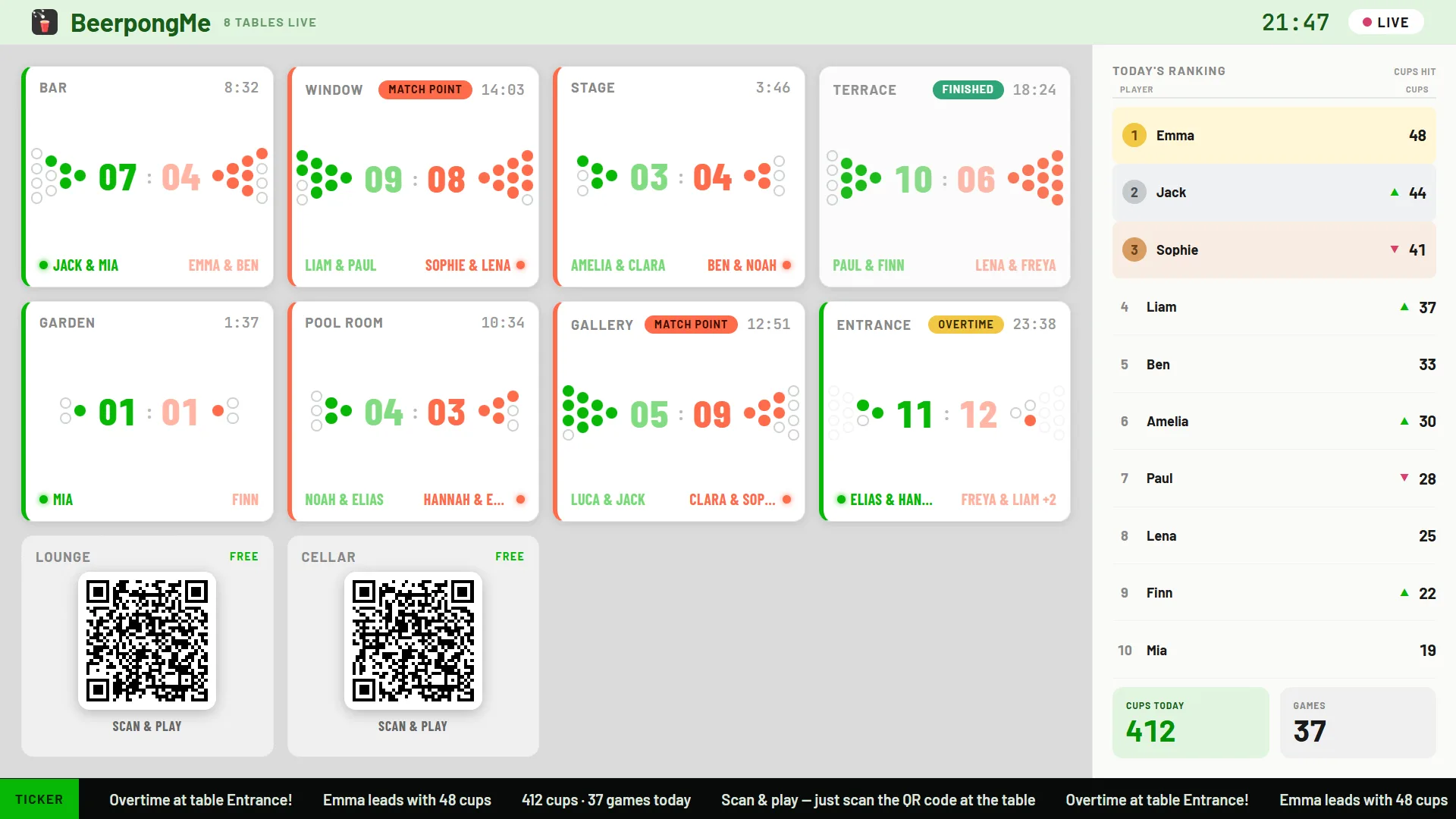
What it shows:
- All your tables as cards. For running games, the live score and the cup pyramids for both sides - cups that have been hit are filled in the team colour. A coloured bar marks which team is up.
- Free tables show their QR codes right on the screen. Anyone standing in the room who wants to play doesn’t have to hunt for a free table first.
- Daily leaderboard on the right, the numbers for the day below it, and a ticker at the bottom with the day’s leader and a prompt to join in.
Instead of all tables, you can also put a single table on the screen full size - for the TV that hangs right above one table. And for you as the operator there’s a report on every table covering rounds, playing time, utilization, peak hours and scans.
Everything about that - the views, sorting the leaderboard, the end of the match day and the numbers in detail - is in its own article, Beer pong TV display for bars.
Maintaining your tables
Every table card has three more actions:
- Edit - change the name and note.
- Renew - the table gets fresh QR codes. Every previously printed code stops working. That’s the right move when a printout goes missing or somebody has photographed a code. The statistics stay fully intact.
The table dialog also has a switch called “Refresh the QR code after each game”. The table then draws fresh codes automatically after every round, which makes photographed codes worthless. The price: printouts are then valid for a single game only. So the option is only worth it at tables where the code sits on a screen anyway.
- Archive - the table disappears from the active list and its codes stop working. Statistics and played matches are kept, and the table no longer counts toward the limit of five. While a game is still running at the table, it can’t be archived.
Who this is for
Table QR codes are built for situations where people come and go and nobody behind the bar wants to manage the overview:
- Bars and pubs with one to five permanent beer pong tables
- Clubhouses and student bars
- Festivals and larger parties with several tables spread around
- Company parties where the beer pong table runs on the side
If instead you play a season with a standings table with a fixed group, a beer pong league is the right tool. For a one-off event with a bracket, use a beer pong tournament. And for a quick game among friends with no fixed table, a plain Fast Game is enough.
Frequently asked questions
Do my guests need an account to play via the QR code?
No. Whoever scans the code at the table is set up as a guest automatically and lands straight in the game. An account only pays off if someone wants to keep their statistics long-term.
How many tables can I create?
Five active tables per account by default. Archived tables don't count toward that limit - so you can archive old tables and create new ones without losing any statistics.
What happens if a printout gets stolen or goes missing?
Use "Renew" and the table gets fresh QR codes. Every previously printed code stops working, while the table's statistics stay fully intact.
Does someone have to end the game if the guests simply walk away?
No. If nothing happens for five minutes, the app checks in with whoever started the match. If there's no answer, the match ends automatically. And every match closes after one hour of runtime at the latest.
What do I need for the TV display in my bar?
Any screen with a browser, signed in with your BeerpongMe account. The display runs in the browser - no extra device and no installation required.