Create and Manage a Beer Pong Team with BeerpongMe
Jump to the FAQIf you play beer pong regularly, you know the problem: who’s actually a fixed part of the crew, when is the next practice, which leagues and tournaments are you entered in - all of it scattered across WhatsApp groups, sticky notes, and your head. A beer pong team in BeerpongMe brings all of that into one place: fixed members, dates, practice times, shared statistics, and a public team page. In this article, we’ll show you how to create a team, invite players, and manage it properly.
What Is a Team in BeerpongMe?
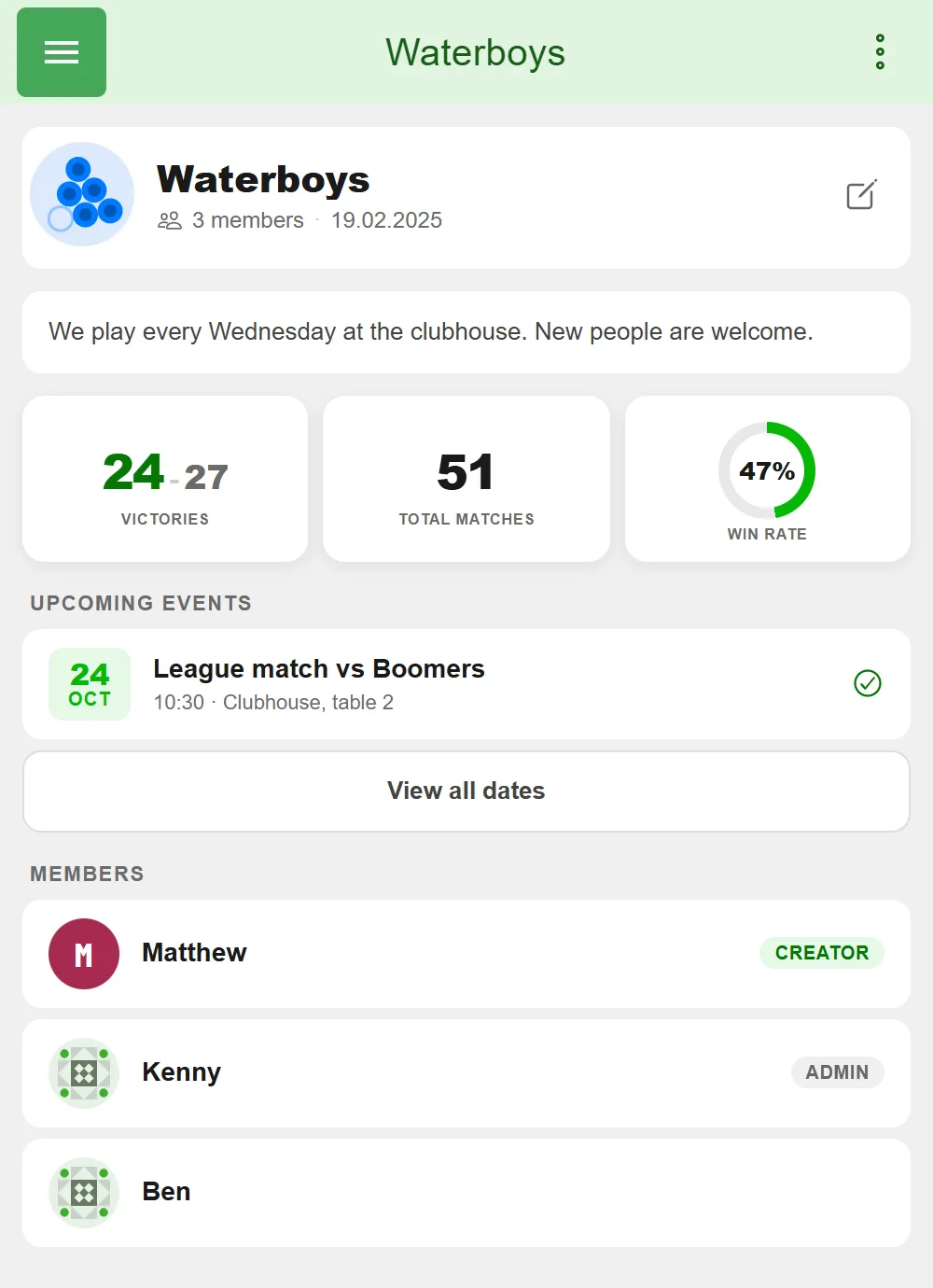
A team is your fixed group of players - from a core four-person squad to an entire university or club crew of up to 40 members. Unlike a one-off session, a team sticks around: over time it collects shared statistics, competes in leagues and tournaments, and has its own, publicly discoverable team page.
Every player in BeerpongMe has their own profile with a nickname that exists only once, for example Christian. That name is how you invite specific people to your team. A player can be in multiple teams at the same time.
Step by Step: Create a Team
Here’s how to set up a new team in the app:
- Log in at beerpongme.com. No account yet? Signing up takes less than a minute.
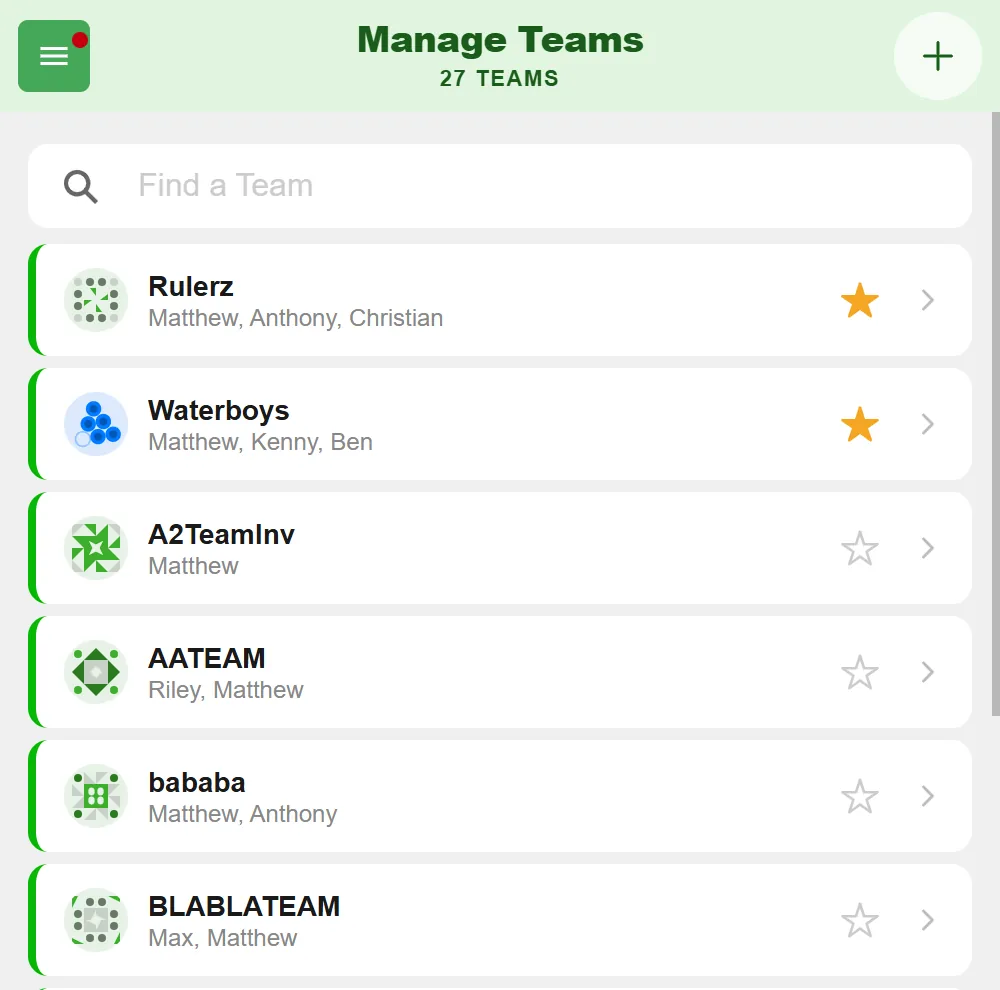
- In the menu, go to “Your Teams” - that opens the “Manage Teams” screen.
- Tap “+” (Create a team) in the top right and give your team a name: 5 to 15 characters made up of letters, digits, and spaces, but not digits only. Every team name exists only once - if yours is already taken, the app tells you right at the field.
You’ll land directly on the team page, where you manage everything else.
The Team Page: One Menu, Two Views
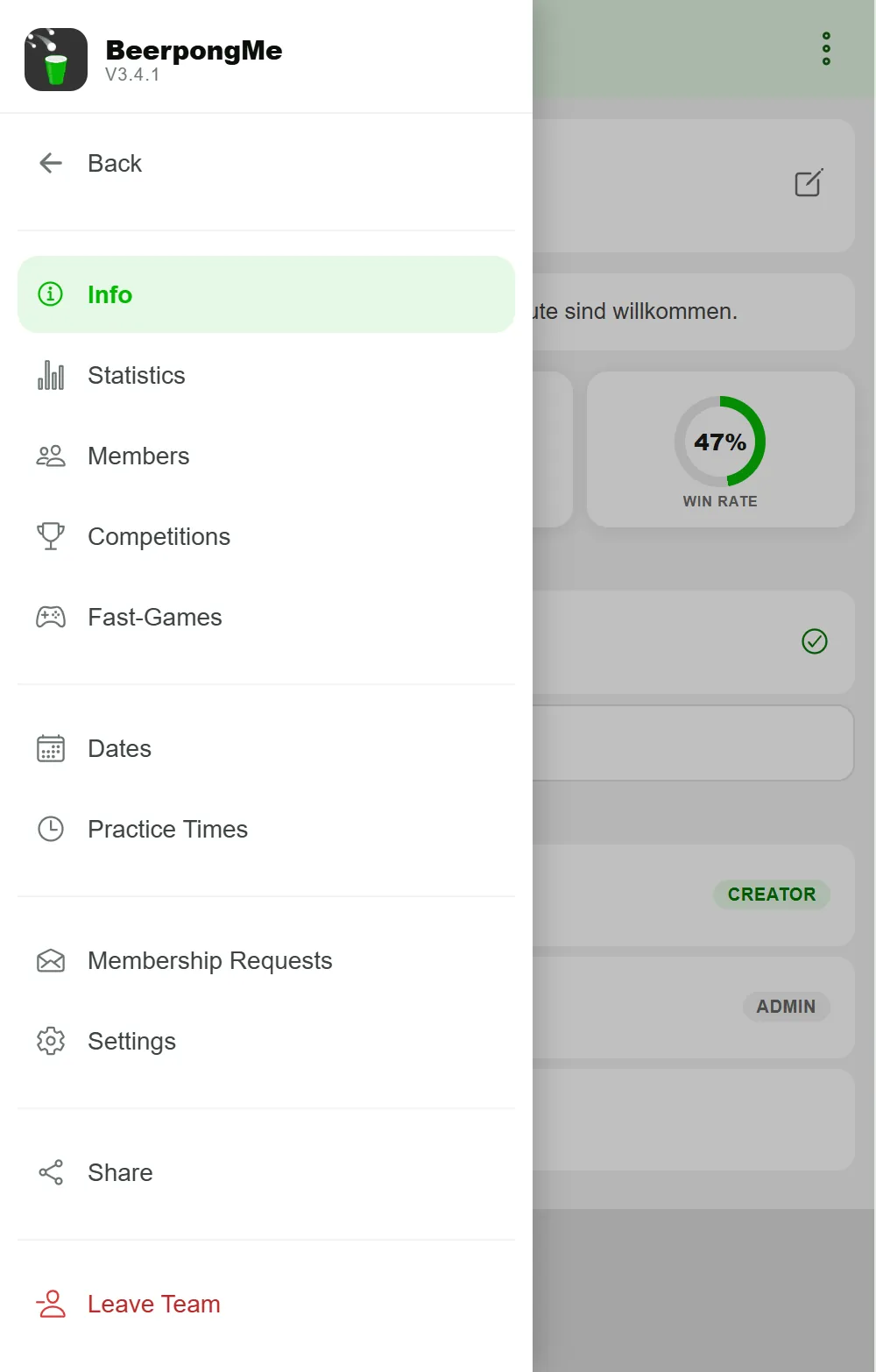
The team page has a menu on the left that you use to switch between areas. What someone sees depends on whether they’re a member or not:
- Public (visible to anyone, even without logging in): Info, Statistics, Competitions (the team’s leagues & tournaments), Fast-Games played, and the member list.
- Members only: Dates, Practice Times, the join requests, and the settings.
A Fast-Game here is a quick, casual match with no league or tournament attached - perfect for a spontaneous evening.
Inviting Members
There are two ways someone joins the team:
You invite them. In the Members area, tap “Invite players” and enter the full nickname, for example Christian. Capitalization doesn’t matter, but the name has to be complete - there is deliberately no partial or fuzzy search. If the search finds them, you send an invitation the player can accept from their inbox. Important: a player must have “Open to team invites” enabled in their profile settings - otherwise they show up but can’t be invited.
They request to join you. Every team has its own QR code: tap “Share” in the menu and switch to the “QR code” tab - next to it you’ll find the link to copy or send on. Whoever scans the code lands on the team page and can tap “Request to join”. For that to be possible, you have to allow join requests in the settings. Incoming requests appear under join requests, where you can accept, decline, or block the sender.
The same “Share” sheet also has the team statistics as a ready-made image: your team’s record, win rate and key numbers, as a Story, Post, Square or landscape image. Send it straight on or save it to your phone.
Members, Roles, and Admins
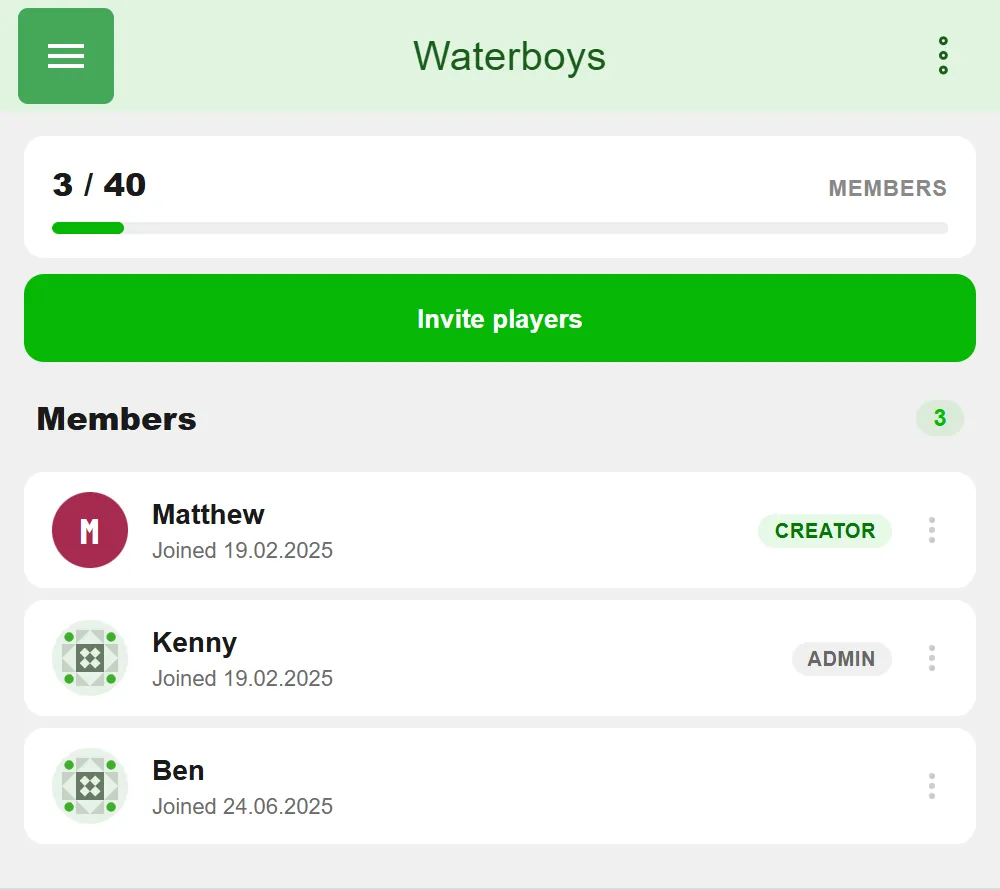
At the top of the member list you see the capacity (e.g. 3 / 40), and below it every member with their role:
- Creator - founded the team, has every permission.
- Admin - helps manage the team. As the creator, you decide which permissions an admin has in the settings under “Admins”: Manage Members, Manage membership requests, Manage Schedules, Manage practice times, Edit Team Settings - and, for leagues and tournaments, “Set Lineup” and “Register Team”. The permissions apply equally to all of the team’s admins.
- Member - plays along, with no management rights.
Using the three-dot menu on a member, you can (with the right permissions) view their profile, make them an admin, or remove them from the team. Only the creator may appoint admins and delete the team - those rights can’t be delegated.
Privacy in the Public List
The member list is public - but it never exposes anyone against their will. Anyone who has set their profile to private appears to outsiders only as a “Private Player” with no name or picture. Among team members, there is no such masking.
Planning Dates and Practice Times
Two areas help you stay organized:
- Dates - single events with a date, time, an optional location, and a note. You mark them as a Match, Practice, or Other. Dates are a plain list, not a monthly calendar - kept deliberately lean.
- Practice Times - recurring weekday slots (e.g. “every Wednesday, 7:00 PM, in the basement”). Kept separate from single events so your regular practice rhythm doesn’t get lost in the dates list.
Both areas are visible to members only; the creator and admins with the matching permission can create and edit entries.
Going or Not Going
The eternal group-chat question “Who’s in on Thursday?” gets answered right on the event card: every member taps “Going” or “Not going” on an event. Below it, everyone can see how many are going, not going, or haven’t replied yet; tap the counts to see the names. You can change your answer until the event starts - after that it’s locked.
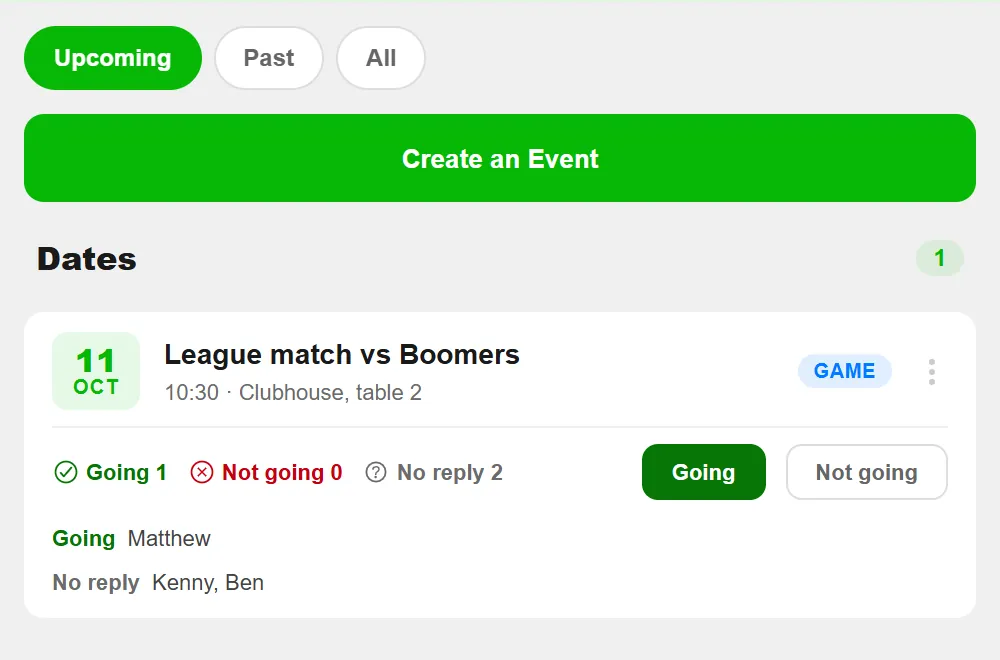
Attendance works for every event type - Match, Practice, and Other. It doesn’t replace the lineup for a league or tournament match, though - that’s still set by whoever has the permission to do it.
Team Settings
In the settings (creator and permitted admins only) you decide:
- Description - a short text that also appears on the public team page.
- Public - whether your team is discoverable in the Discover section.
- Allow join requests - whether outside players may send a request.
- Admin permissions - the fine-grained control over what your admins can do. With “Set Lineup”, admins decide who plays for your team in leagues and tournaments; with “Register Team”, they sign the team up for a league or tournament. Both are switched on from the start.
- Delete team - the final step, creator only.
Finding Your Teams Again: Search and Favorites
If you’re in a lot of teams, the overview under “Manage Teams” helps: the search field filters your teams by name, and the star marks a team as a favorite - favorites then always stay at the top. This marking is stored only locally on your device.
Team, League, or Tournament - What Fits When?
A team is the fixed group. If you want to compete against other teams in a table across a whole season, you additionally create a beer pong league. For a one-off event with knockout rounds or a group stage, a beer pong tournament is the right choice. For a quick game with none of the overhead, a Fast Game is enough. In all three cases you compete as a team - which is why the team is the foundation you set up first.
Frequently asked questions
How many members can a beer pong team have?
A team in BeerpongMe holds up to 40 members. That covers larger groups, shared houses, clubs, or university crews - not just a fixed team of four.
Do my teammates need their own account?
Yes. Every player has their own BeerpongMe profile with a nickname that exists only once (e.g. Christian). That name is exactly how you invite someone to the team.
Can I be in multiple teams at the same time?
Yes. You can be a member of as many teams as you like. Each team has its own members, dates, statistics, and competitions - they stay cleanly separated.
What does a team cost in BeerpongMe?
Creating and managing a team is completely free. There is no limit on how many teams you can create or join.