Beer Pong Tournament Presentation: Standings and Results on the TV
Jump to the FAQAt a beer pong tournament, everyone asks the same things: who are we playing, at which table, and where do we stand in the group? If the answers only live on the organizer’s phone, that’s where the line forms.
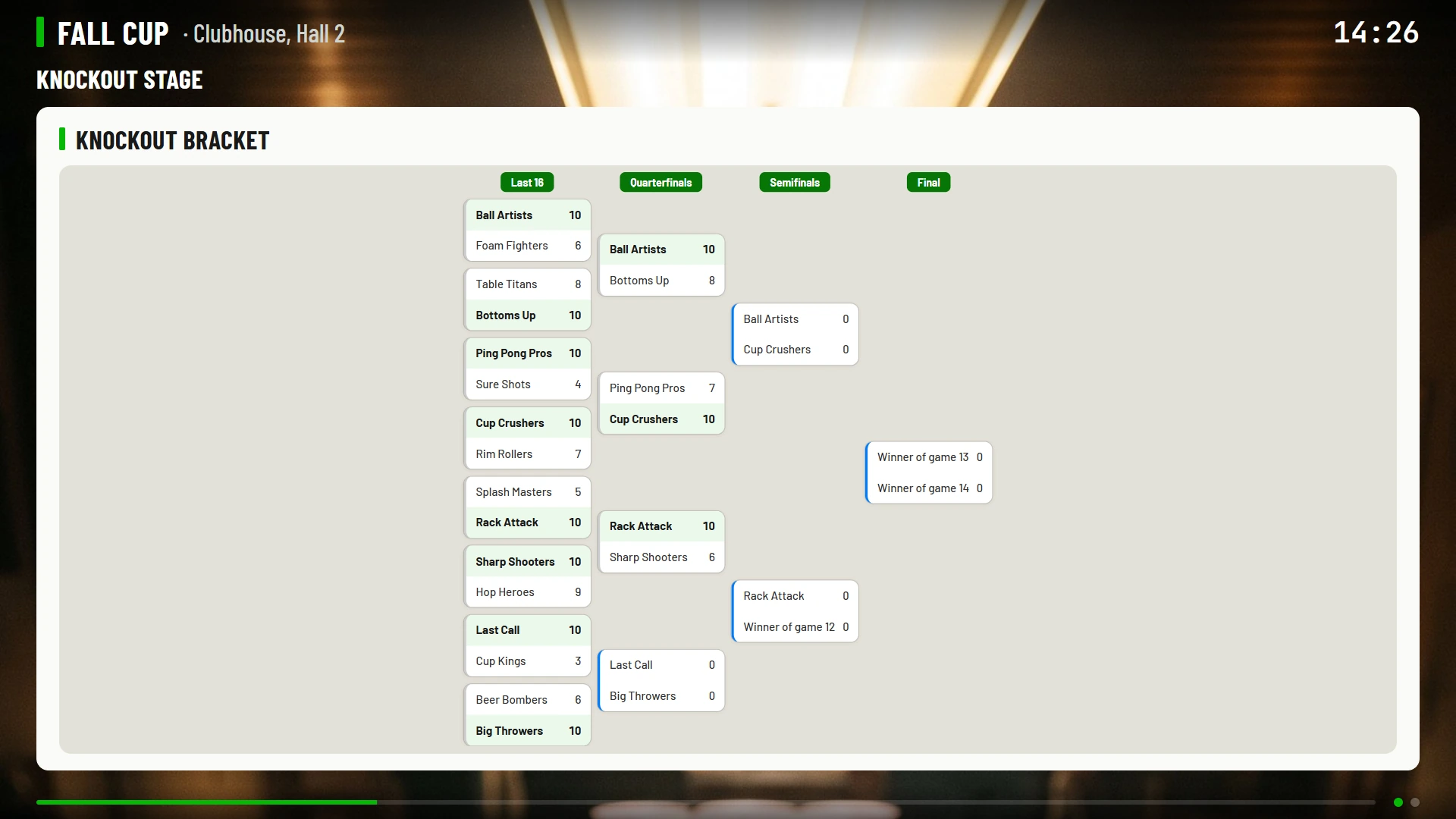
The tournament presentation in BeerpongMe puts those answers on a screen in the room: a slideshow you build yourself for a TV or projector, with standings, the knockout bracket, upcoming games and results, plus your logo and your sponsors. It runs in the browser and updates itself during the tournament, whether it’s a bar championship, a club party or a big beer pong night.
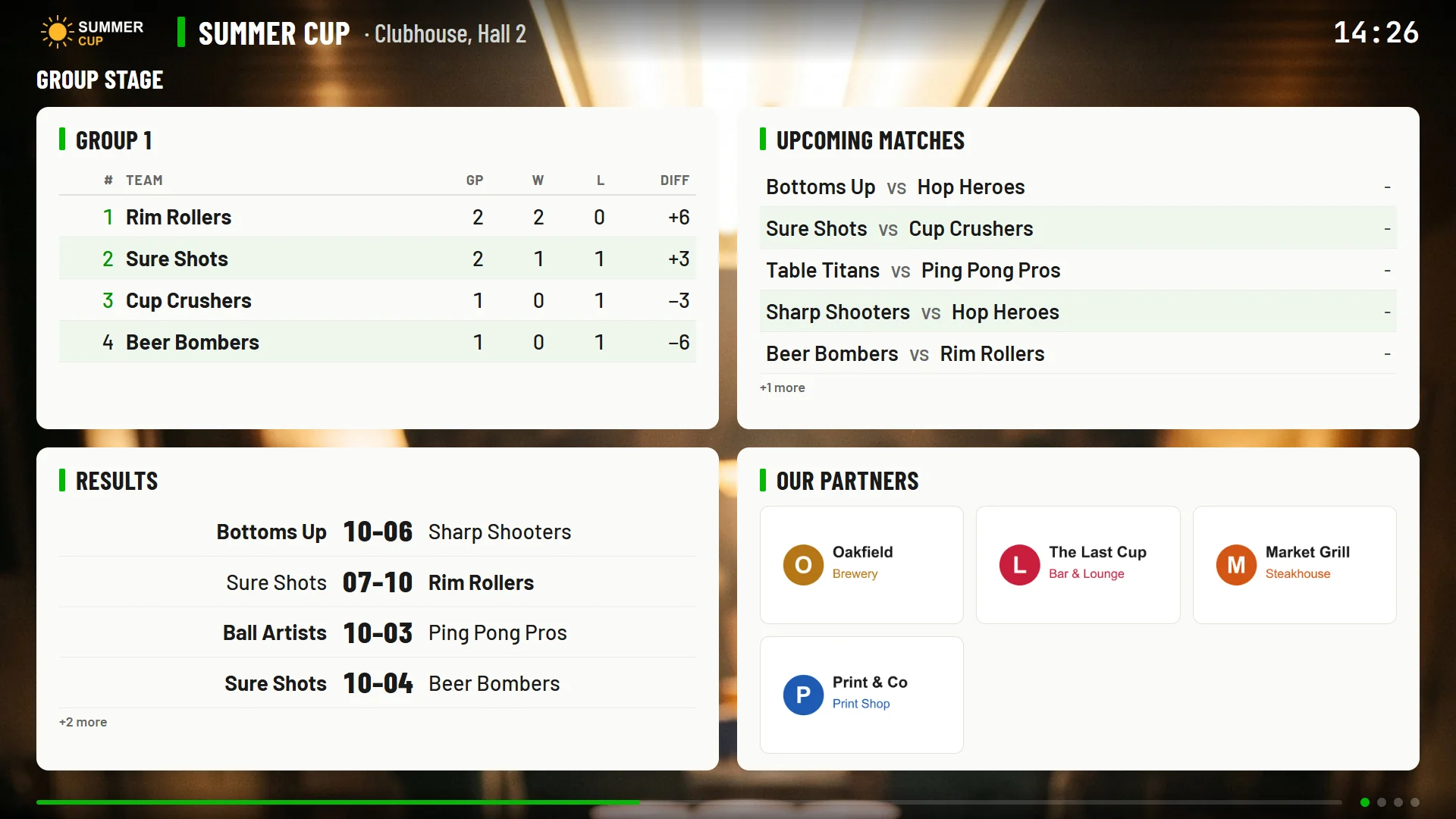
The presentation belongs to one tournament. If you’d rather show the live games on your permanent tables, without a tournament, the TV display for bars is the right tool.
Book a beer pong tournament presentation: cost and rules
You’ll find everything in your tournament’s side menu under “Presentation”. The tournament’s creator and admins can see this menu.
- Create your tournament if you haven’t yet. Organize a beer pong tournament explains how.
- Open “Presentation” and turn on “Book a presentation”.
- The price is shown right next to the switch. The regular price is 50 Coins, and any discount is already included. You pay when the tournament starts, together with the other tournament costs.
Once it’s booked, you can get started right away. Three rules apply to the booking:
- Only the creator can book or cancel it.
- Only before the tournament starts. After that, this option is locked for the tournament. You can turn it on again for your next one.
- “Cancel booking” is in the menu next to the “Booked” label. Your slideshows stay saved and the links stay valid, but open TV displays stop showing them until you book again before the start.
You can bring in helpers too: the tournament settings have two admin permissions, “Edit presentation” (change slideshows, design and sponsors) and “Control the presentation” (operate the running display live). The creator hands these out.
Build a slideshow, step by step
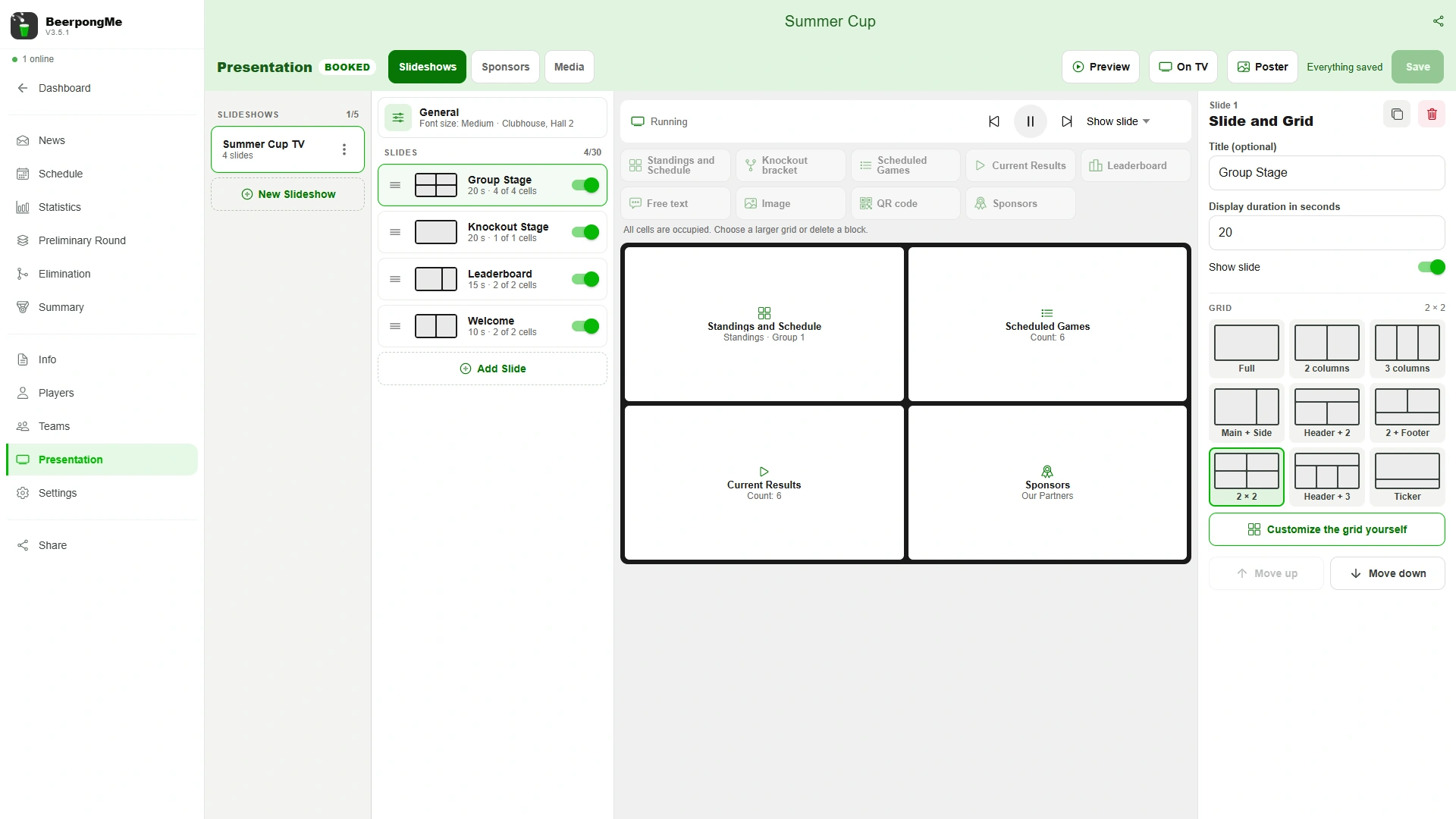
You can create up to 5 slideshows per tournament, each with up to 30 slides and its own link. The editor is most comfortable on a large screen. It also works on a phone, where you tap through the sections.
- In the “Slideshows” tab, tap “New Slideshow” and give it a name, such as “TV Entrance”.
- Tap “Add Slide” to add your first slide.
- Pick a grid for the slide, which is how the screen is divided.
- Place blocks in the cells: tap to fill the next free cell, or drag with the mouse.
- Tap a block and adjust it on the right.
- Under “General”, set the logo, background and location.
- Tap “Save”. Only then do the TV and the preview get the new version.
Slides and grids
For each slide you set an optional title and the display duration: 3 to 600 seconds, 10 by default. “Show slide” takes a slide out of the rotation without deleting it. Slides can be reordered and duplicated.
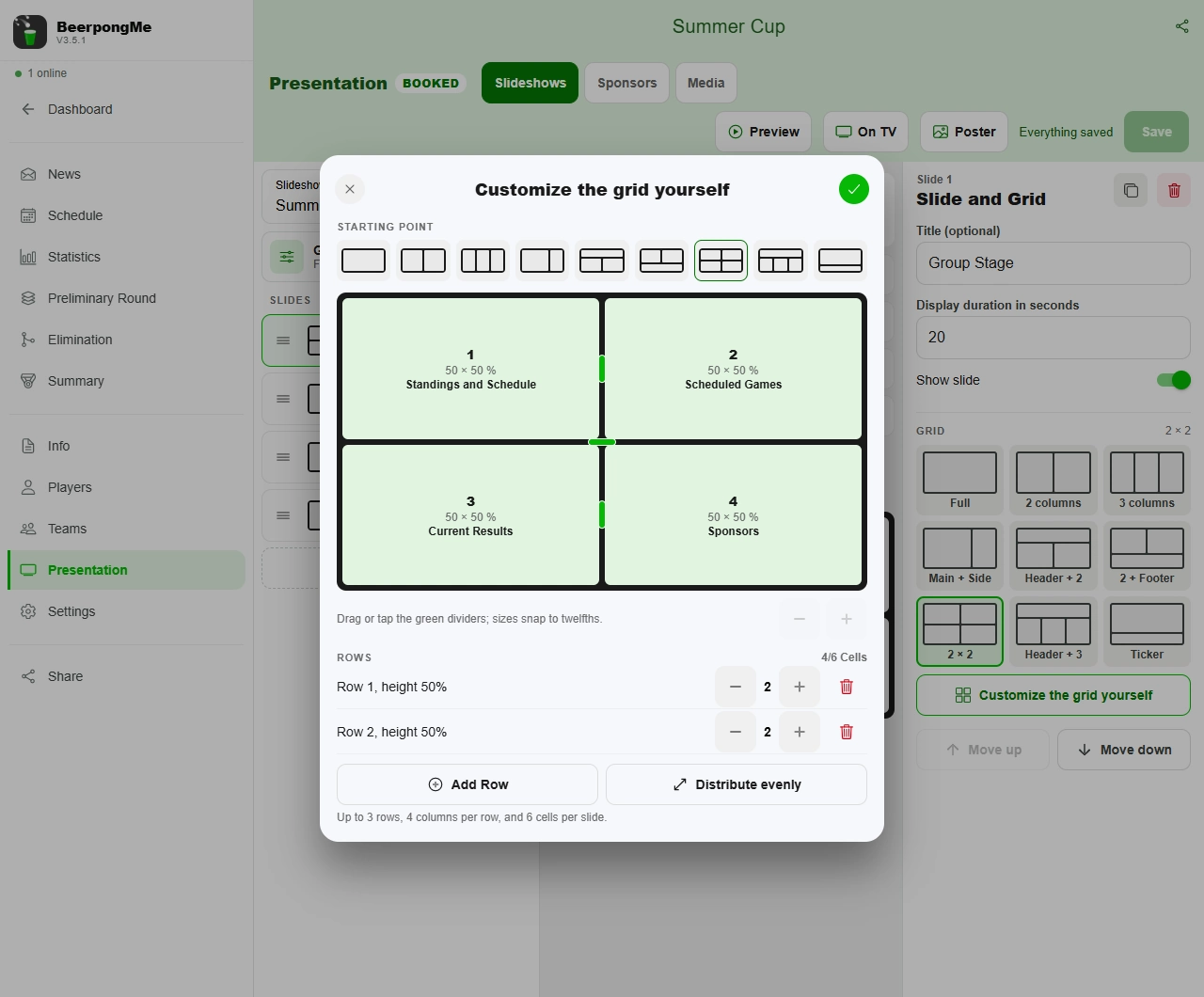
There are nine grid templates: Full, 2 columns, 3 columns, Main + Side, Header + 2, 2 + Footer, 2 × 2, Header + 3 and Ticker. If none fits, “Customize the grid yourself” lets you design your own: up to 3 rows, 4 columns per row and 6 cells per slide.
Switching to a smaller grid doesn’t lose anything. Blocks that no longer fit move to “Not placed” and don’t appear on the TV until you give them a cell again.
The blocks
| Block | What it shows | What you can set |
|---|---|---|
| Standings and Schedule | Standings and games from the preliminary round | View (standings, schedule or both), group, table columns |
| Knockout bracket | The current knockout bracket | - |
| Scheduled Games | The next games, with table and time if you’ve assigned them | Number of games |
| Current Results | The most recently finished games | Number of games, whether running games are included |
| Leaderboard | Teams or players | Leaderboard for teams or players, number of entries, columns for teams |
| Free text | Your text, such as house rules or the break time | Up to 2000 characters, emojis aren’t supported yet |
| Image | An image from your media | Image |
| QR code | A code to scan | Target: tournament page, app or your own address starting with https:// |
| Sponsors | The logos from a sponsor block | Sponsor block |
Lists show 1 to 50 entries, 5 by default. For the table columns you choose between Games, Wins, Losses, Points, Cups +, Cups − and Difference. You can duplicate a block or move it to another slide.
General: logo, background and font
These settings apply to the whole slideshow:
- The slideshow’s name
- Font size: Small, Medium, Large or Extra large
- Show tournament name and Show time
- Tournament location, such as “Clubhouse, Hall 2”
- Logo and Background image
Sponsors
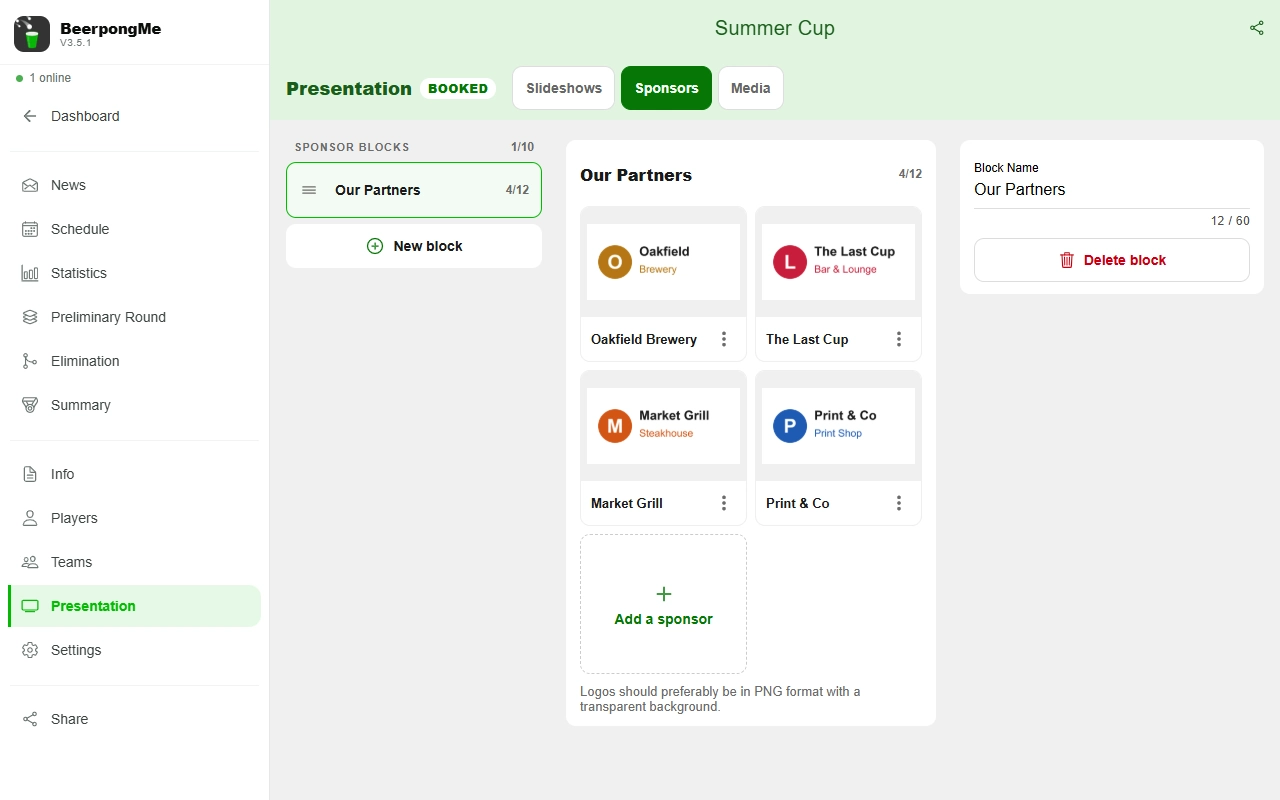
In the “Sponsors” tab you create sponsor blocks, such as “Main sponsors” and “Supporters”: up to 10 blocks with up to 12 sponsors each. They apply to the whole tournament, so you can show the same block in several slideshows. Each sponsor gets a name and an image, ideally a PNG with a transparent background. In the editor, you then add the block with the “Sponsors” block.
Media: uploading images
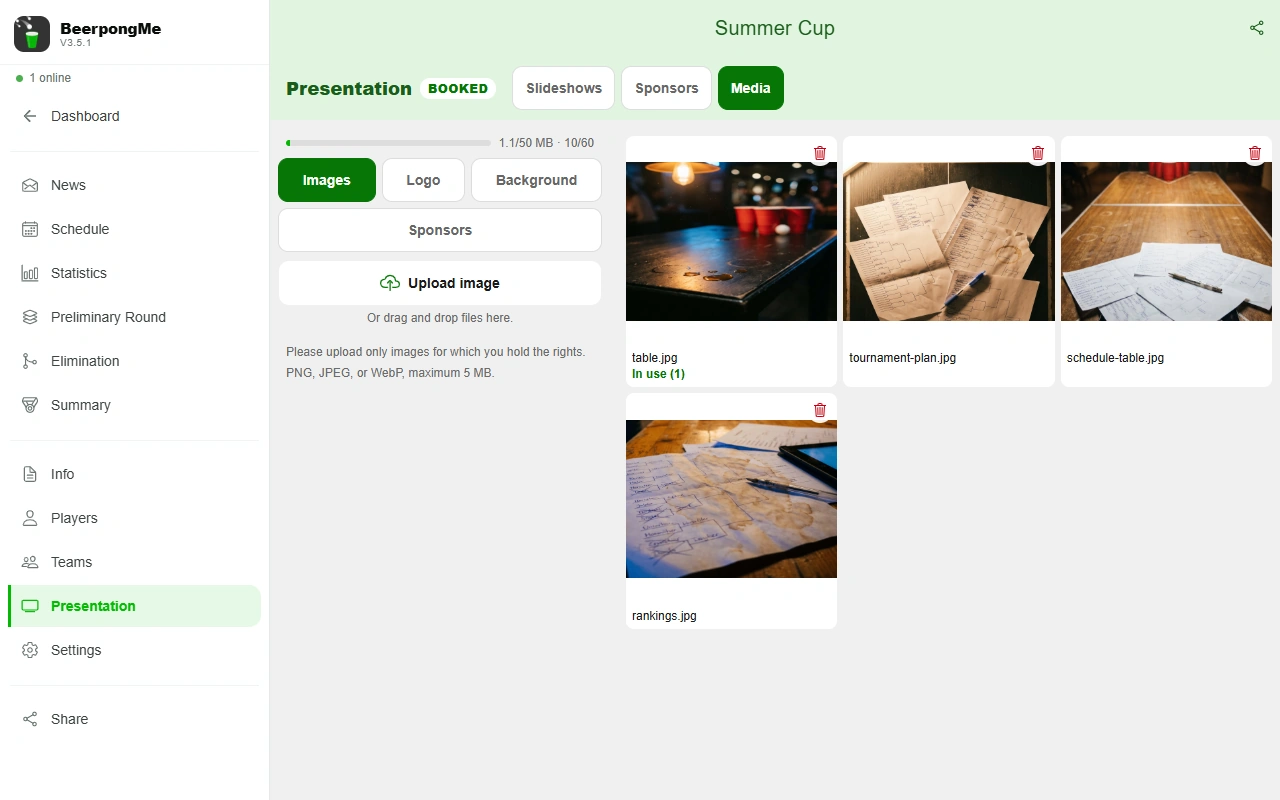
The “Media” tab holds all your tournament’s images. The bar at the top shows how much storage is used. Only upload images you have the rights to.
| Type | Formats | Size |
|---|---|---|
| Images | PNG, JPEG, WebP | 5 MB at most |
| Logo | PNG, WebP | 2 MB at most |
| Background | PNG, JPEG, WebP | 1280 × 720 or larger recommended, large photos are scaled down automatically |
| Sponsors | PNG, JPEG, WebP | 1 MB at most |
During an upload you’ll briefly see “Checking…”. That’s the technical check of the file, and you can use the image right after it. Separately, the BeerpongMe team reviews uploaded images afterwards and can remove images that aren’t allowed (see below).
Each image shows whether and where it’s “In use”. If you delete an image that’s in use, it disappears from those places, and that can’t be undone.
When two people edit at once
If someone else has saved the same slideshow in the meantime, the app asks when you save. You can load the new version or overwrite it with yours. Overwriting loses the other person’s changes, such as new slides.
Preview and “On TV”
“Preview” opens the real display in a new tab, exactly as it will look on the screen later. If you haven’t saved yet, the app asks whether to save first. If your browser blocks the tab, allow pop-ups or use the link under “On TV”.
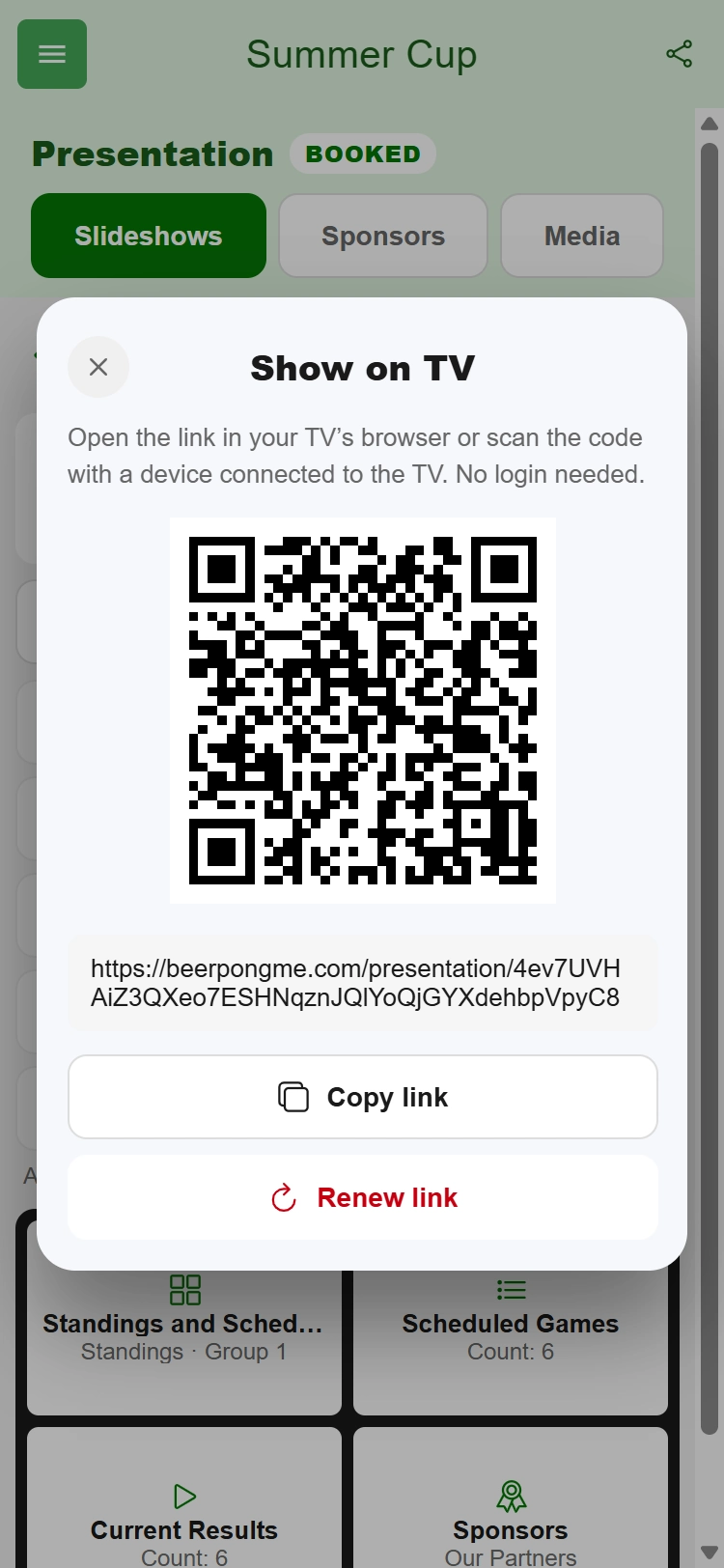
“On TV” shows you how to get the slideshow onto the screen:
- Tap “On TV”.
- Open the link in the TV’s browser, or scan the QR code with a device connected to the TV. “Copy link” lets you send the link to your laptop, for example.
- Switch to full screen with the button on the display or with F11.
No login is needed, and anyone with the link can see the display, even for a private tournament. “Renew link” replaces the link: the old one stops working, and open displays show a notice that they need the current link.
Slides change on their own, and standings and results update during the tournament. If the connection drops, the display keeps running with the last data and shows a small marker that the data may be out of date.
Live control during the tournament
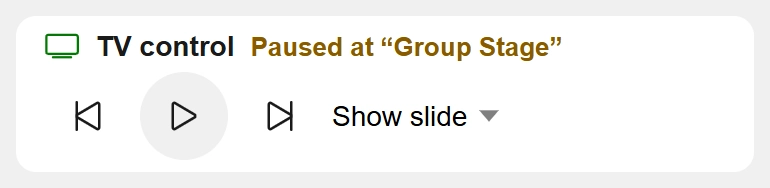
TV control in the editor lets you operate every screen running this slideshow from a distance:
- Back and Next jump one slide.
- Pause stops all TVs, and another tap resumes them. The control shows which slide they’re paused on.
- “Show slide” jumps straight to a specific slide, such as the knockout bracket just before the final.
Control always works on the saved version. Admins need the “Control the presentation” permission to use it.
A poster for your tournament
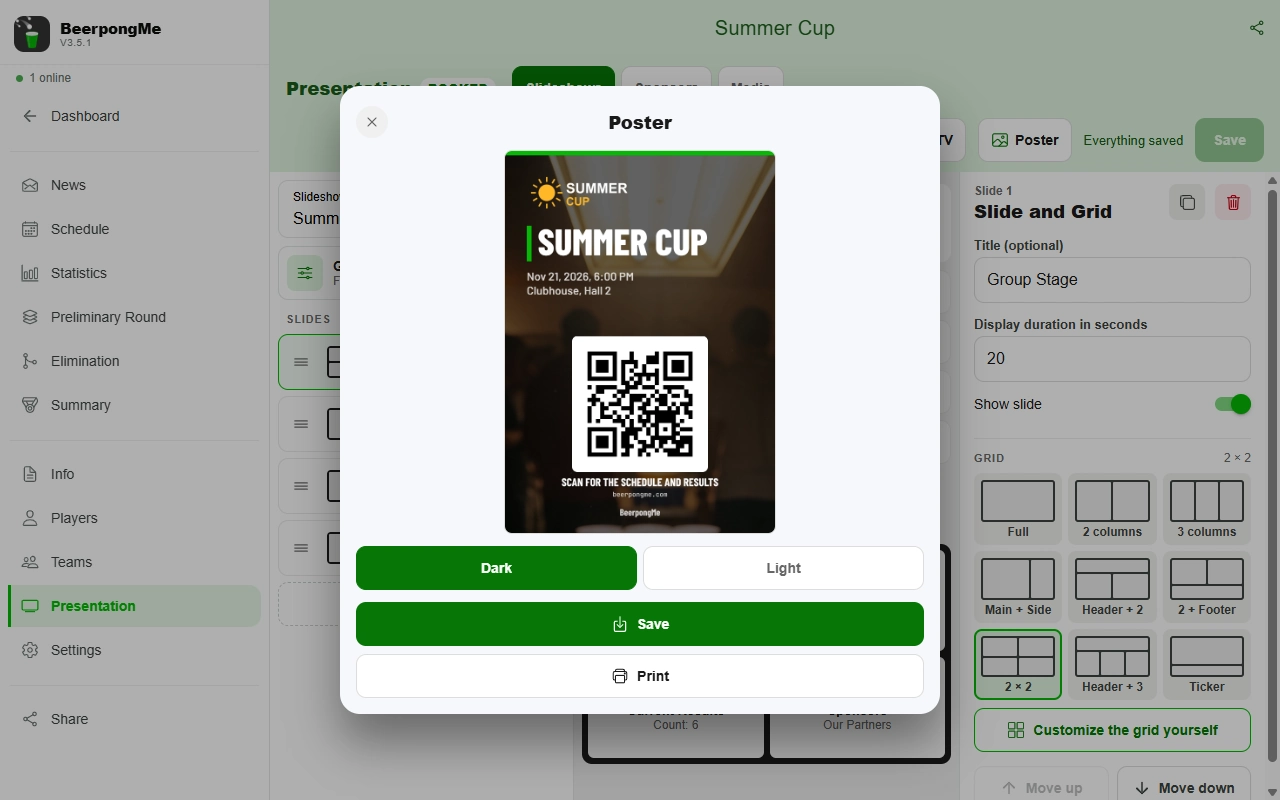
The “Poster” button turns your slideshow into an A4 promotional poster with the tournament name, logo and background image. Date and location appear if you’ve entered them. On narrow screens the button is in the three-dot menu.
- You choose between Dark and Light.
- The poster has a QR code with the text “Scan for the schedule and results”. A private tournament’s poster has no code.
- “Save” downloads the poster as an image. “Print” is only available in the browser, not in the app.
Changes to the logo and background show up on the poster even if you haven’t saved them yet.
Reporting a presentation: when something on the display isn’t right
If a presentation shows something that doesn’t belong there, such as someone else’s logo without permission or an offensive image, anyone with the display open can report it. You don’t need an account.
- Move the mouse or tap the screen on the display. The flag icon appears at the bottom right for a few seconds. Tap it.
- Choose a reason: Inappropriate content, Copyright, Spam or Other.
- If you like, select the image in question and describe the problem in up to 500 characters. For Copyright and Other, an explanation is required.
- Name and email are optional. You only get a confirmation and, later, the decision if you enter an email. We delete your name and email 30 days after the decision, and at the latest 90 days after receipt. If you’re logged in, “Fill in my details” completes both fields.
- Check the box next to “I hereby certify in good faith that the information I have provided is accurate and complete.” and confirm at the top right. Without a reason, the checkbox and any required explanation, the report can’t be sent.
The report goes to the BeerpongMe team, where a person decides. Until then the display keeps running normally. If you entered an email, you’ll find out by email how it was decided, meaning whether the slideshow was blocked, an image removed or no action taken, and how you can appeal.
The organizer isn’t told about the report itself and never sees your name or email address.
Only a few reports per hour are possible from one network, which you’ll mostly notice on a venue’s Wi-Fi. Once the limit is reached, the display shows a notice with an address you can write to instead.
When a slideshow is blocked or an image is removed
If content breaks the rules, the BeerpongMe team usually removes the affected images individually, including after a report. It only blocks a whole slideshow in exceptional cases, such as an inadmissible name. As the tournament’s creator you’ll get a message in the app. It states the reason, whether a report was the trigger, a short explanation, and the address to contact if you disagree. It doesn’t say who reported it. The rules are in section 6a of the terms and conditions.
If a slideshow is blocked:
- The TV shows “This presentation has been blocked”. A renewed link doesn’t show it either.
- It’s listed as “Blocked”. You can’t delete it or create a poster from it, and live control isn’t available for it. It still counts toward your 5 slideshows.
- If it’s unblocked, you get a message and the existing link works again. Open displays carry on by themselves.
If a single image is removed, the slideshow stays online. The block or logo in that spot is then empty, and you can pick another image.
Who this is for
The presentation pays off as soon as there are more people in the room than fit around your phone: from about eight teams, at tournaments with a group stage, and anywhere sponsors should be visible. For a night with friends, the public tournament page that everyone opens on their own phone is usually enough.
It isn’t meant for everyday play on permanent tables without a tournament. That’s what the TV display for bars is for. To plan a whole tournament night at a pub, see Beer pong tournament night in a bar.
Frequently asked questions
How much does the tournament presentation cost?
The regular price is 50 Coins per tournament. You see the price for your tournament right where you book it, and any discount is already included. You pay when the tournament starts, together with the other tournament costs.
Do I have to log in on the TV?
No. You open the slideshow's link in the browser of the TV or a connected device. No login or installation is needed.
Does the TV show my changes right away?
The TV only shows what has been saved. Until you tap "Save", the old version keeps running there.
Can I show different things on several screens?
Yes. You can create up to 5 slideshows, each with its own link. That way the screen at the entrance can show something different from the projector in the main room.
What happens if an old link ends up in the wrong hands?
"Renew link" gives the slideshow a new link. The old one stops working, and open displays show a notice that they need the new link.
Can I still book the presentation after the tournament has started?
No. Booking and canceling only work before the start, and only for the tournament's creator. You can still edit and control a booked presentation during the tournament.
Does the organizer find out who reported a presentation?
No. Name and email are optional and only go to the BeerpongMe team. The organizer isn't told about the report itself. Only if the team blocks or removes something does the organizer get a message, and even then without any details about the person who reported it.